Feedback: How to delete a comment
Summary
To delete a comment in Siteimprove Feedback, navigate to Analytics → User Feedback → Feedback, open the survey, locate the comment, and click Delete comment.
Overview
If you for any reason want to delete a comment that your website visitor provided in the Feedback feature of Analytics, follow the below steps:
Steps
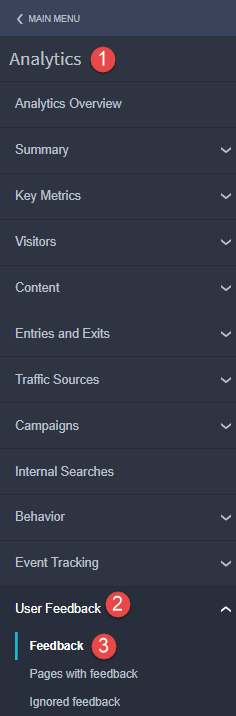
- Select Analytics.
- Select User Feedback.
- Select Feedback.
- Select the Feedback survey in which the comment was made.
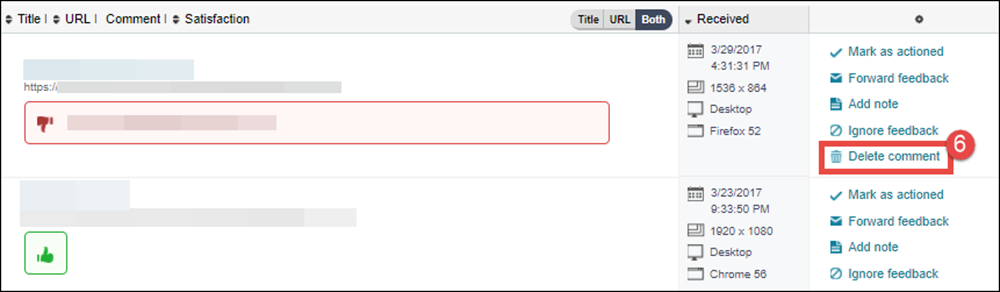
- Locate the comment in the list.
- Click Delete comment.
Expected Result
- The comment is now deleted.
Notes
- Deleting a comment will not affect the overall feedback score.
- When creating a new Feedback survey, you can customize the survey to auto-delete old user comments after a certain time period.
Did you find it helpful? Yes No
Send feedbackSorry we couldn't be helpful. Help us improve this article with your feedback.