How to setup the Pardot Marketing Automation Integration
Answer
The Pardot Marketing Automation (Landing Page) Integration enables Siteimprove to identify your landing pages so that Siteimprove can run checks to detect any possible issues. With this Pardot integration, landing pages will be monitored for issues in the same way as the sites on your subscription. Fixing issues detected on landing pages helps:
- Ensure consistent, error-free content
- Minimize page load times
- Understand visitor traffic and behavior
- Optimize content for higher engagement
- Remove roadblocks to conversion
This integration is only needed if users want to track Content (Quality Assurance) data in addition to Analytics data for Landing Pages in Pardot. You don’t need the integration to track Analytics data only.
Important Information
This integration is only needed if users want to track Content (Quality Assurance) data in addition to Analytics data for Landing Pages in Pardot. You don’t need the integration to track Analytics data only. For tracking Analytics data only, that can be tracked under a current Analytics site by following the steps under Configuring domains and removing unwanted domains in Analytics, or you can add a new Analytics site by following these steps: Adding a Site (Tips & Tricks).
Siteimprove uses the Siteimprove script code to identify your landing pages. If you have already added the Siteimprove script to the landing pages, you can skip that preparation step.
Once the script is present, Analytics data for the landing pages can be found in the Analytics module if the page is part of a current Analytics site. Otherwise, you can add a new Analytics site to include the landing page (Account Owner level permissions).
Siteimprove starts an automatic Single Page Check shortly after a landing page with the Siteimprove Analytics script on it has been visited. This check will complete in a few minutes, and then the results can be seen in the platform.
Prerequisites
Ensure You Have the Required Subscriptions in the Siteimprove Platform
The Pardot Marketing Automation Integration requires subscriptions to both Quality Assurance (QA) and some form of Analytics product (Traffic Analytics, Usability, or Marketing Analytics).
Ensure That You Have the Appropriate User Permissions
You need to be an Account Owner or Administrator within the Siteimprove platform to add or configure a marketing automation integration. To set up the integration to be tracked under a separate site, which is recommended, you will need Account Owner permissions to add sites, or you will need to work with someone with that level of permissions to add a new site to be used for this integration ahead of the setup of the integration.
Ensure You Have Placed the Siteimprove Script on Your Pardot Landing Pages
- In Pardot, navigate to Marketing > Files and Templates > Design tools.
- Identify the template for your landing pages.
- Click on Actions > Edit.
- Insert the code snippet in the body section of your template.
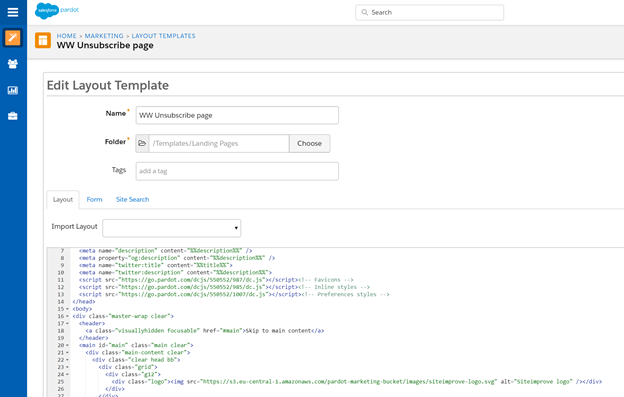
You can find out more about the Siteimprove Analytics Script in Adding Siteimprove Analytics JavaScript to your website.
Make Sure You Have Identified the Domain of Your Pardot Landing Pages
- In Pardot, go to Marketing > Landing Pages.
- Open any existing landing page.
- Look at the Full URL field (or the published URL preview).
- The domain at the beginning of that URL is your landing-page domain.
- For Example, for the URL: https://go.yourcompany.com/your-landing-page Your landing-page domain = go.yourcompany.com.
How to Set Up the Pardot Marketing Automation Integration
There are two different ways to set up the Pardot Integration in the Siteimprove Platform.
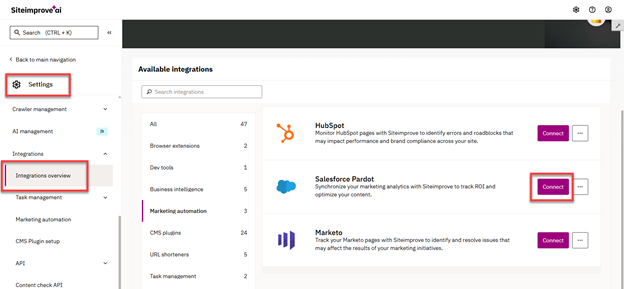
- Navigate to Settings > Integrations > Integrations Overview and click Connect.
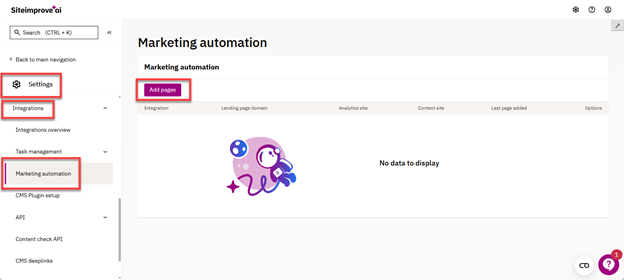
- Navigate to Settings > Integrations > Marketing Automation and click Add pages.
Add Your Landing Pages
To add your landing pages, follow the steps on the page that comes up. 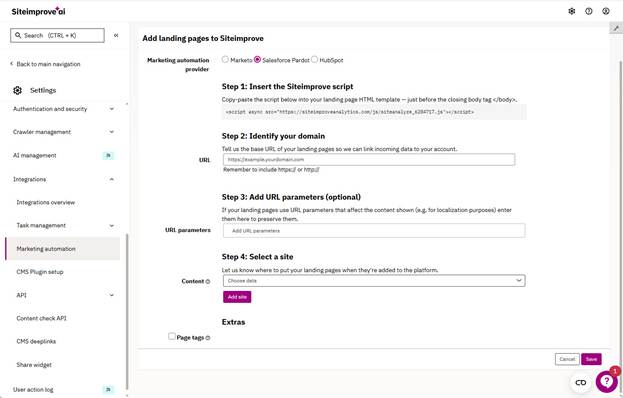
- Under Marketing automation provider, ensure that the radio button for Pardot is selected.
Step 1: Insert the Siteimprove Script
Make sure the Siteimprove Analytics script is present on the landing pages. If you followed the preparation steps above, you may have already done this.
Step 2: Identify Your Domain
Enter the landing pages' base URL (domain) noted from the Pardot Settings earlier under the Preparation and Requirements step above. Remember to include https:// or http:// in the URL of the domain.
- Siteimprove will identify if we already monitor the URL via the Siteimprove script and, if not, you will be instructed to add the domain to an existing site.
Step 3: Add URL Parameters (Optional)
You have the option to add parameters that change the content of your landing page (e.g., localization parameters). Siteimprove will preserve these specific parameters in the URL structure.
Step 4: Select a Site
You can either select a "Content site" that the landing page URLs will be associated with, or if you are an Account Owner, you can add a new site to track the data under.
Note: We recommend that you use a separate site exclusively for your landing pages to avoid any impact of adding tracking under a currently added site. If you track data under a current site, the added tracking for the landing pages can potentially impact the DCI score of the Content Site, leading to changes in the number of issues (Misspellings, broken links, A11Y, Policy, etc), and it can also lead to changes in page count for the site.
Extras: Page Tags (Optional)
You can also select a page tag or create a new page tag if you want your landing pages to be tagged automatically.
Learn more about page tagging in the article: Page tags FAQ.
Save and Finalize Setup
- Click Save.
- Siteimprove will identify landing pages that were created or visited in the last three months (if the Siteimprove script was previously added to the page). These landing pages will then be crawled as part of your content suite.
- Click Continueto confirm the settings and finalize the setup.
- Adding landing pages can affect your DCI® score.
- You are then presented with an integration is complete message.
Usage
The first time a landing page with the Siteimprove script is visited, Siteimprove will be notified, and checks, such as Quality Assurance, Accessibility, Policy, and SEO, will be carried out. We will then identify content optimization opportunities via modules in the Siteimprove platform.
The Pardot landing pages will be visible within your Quality Assurance module and can be found under Quality Assurance > Inventory > Pages.
Additional Information
- If you have an A/B test implemented on landing pages, contact Siteimprove technical support to handle different A/B test parameters.
- Siteimprove is happy to help with questions regarding configuring the integration. Siteimprove does not provide support or product help for the third-party software with which you are connecting.
Did you find it helpful? Yes No
Send feedback