How to create policies to uphold standards for digital content
Answer
Policies refer to any standards your organization wishes to uphold in relation to your digital content. You can create policies using the Siteimprove Policy module by using the Getting Started wizard, selecting a policy from the Policy Library, duplicating an existing policy, or creating a policy from scratch. Policies are built using Categories and Rules, allowing you to search for and monitor content that meets or violates your organization's standards.
Before You Begin
Policies are created using the Siteimprove Policy module. For example, if you want to avoid certain words in the site's text, you can create a policy that searches for and highlights these words if they are present.
Create a Policy
You can choose from one of four options to create a policy.
Option 1: Use the Getting Started Wizard
We recommend this option for simple content searches.
- Click Learn > Get Started.
- Choose what you are looking for from the drop-down menu.
- Enter your match.
- Click Go.
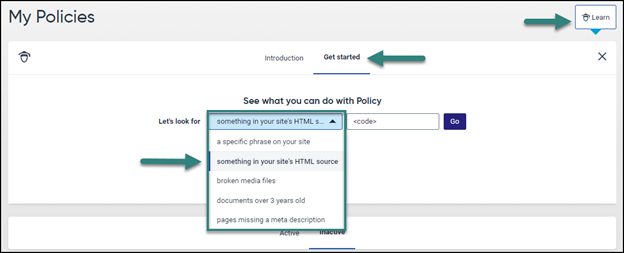
Option 2: Use the Policy Library
You also have the option to create a policy using predefined policies from the Policy Library.
Note: Check out our interactive tutorial on how to add a policy from the Policy Library.
Option 3: Duplicate an Existing Policy
Duplicate an existing policy with similar rules and modify it based on your needs. 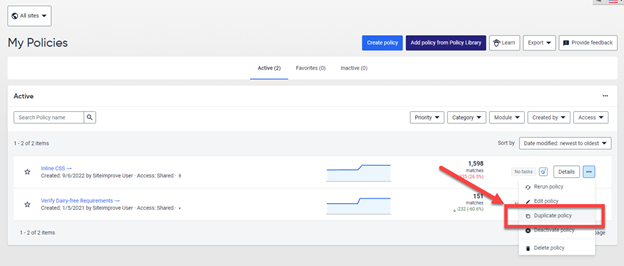
Option 4: Create a Policy from Scratch
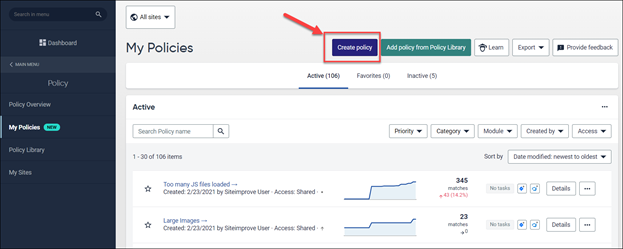
If the first three options don’t meet your needs:
- Click My Policies > Create policy.
- Configure the policy using Categories and Rules.
Configure Your Policy
When you create a policy, you will see that it consists of two main elements: Category and Rules.
Category
Here you select if a policy relates to general content on the site, or if it is specific to document or media files. 
Rules
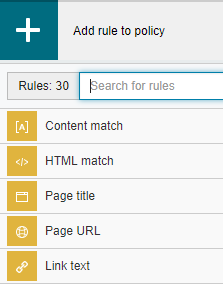
Once a category has been selected, you can add rules to the policy. Rules are the building blocks you can use to assure that the content of each page matches your website’s standards.
A policy can consist of one or more rules.
Use Multiple Rules
The And include option is used between multiple rules. 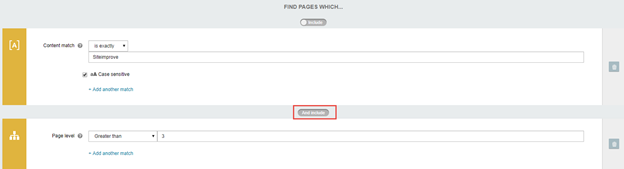
Use Multiple Matches Within a Rule
Within a single rule, you can add multiple OR matches by clicking Add another match. 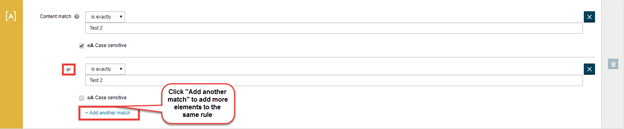
Include or Exclude Matches
Above each rule, you can click on include to change it to exclude. This can be used if you want to find pages that do not contain a match. (For example, to find a specific word except on pages whose URL contains /news/.)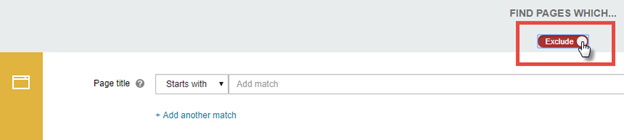
Video on How to Create a Content Policy
Policy examples
Example 1: Unwanted terms
Policy: Find unwanted terms on your site
Category: Content
Rule: Content match (All unwanted terms can be added to the same rule, using "Add another match") 
Results: All pages that contain one or more of the terms.
Example 2: Link text
Policy: Link texts that contain just "Read more" or "Click here"
Category: Content
Rule: Link text (all links texts can be added to the same rule)
Results: All pages that contain one or more of the link texts.
Example 3: Long page titles
Policy: No page titles over 70 characters in a specific page group
Category: Content
Rules: Page title length & Page URL
Results
All pages whose URL contains /business/ and have a page title over 70 characters long.
Learning Hub Courses
Learning Hub provides online training and certification on web accessibility, analytics, SEO, data privacy, and more. The courses will allow your organization to get the most out of the Siteimprove solutions.
Related Articles
Did you find it helpful? Yes No
Send feedback