Policy Module Overview
Summary
The Policy module finds content that violates your organization's web standards or content strategies. It helps editors monitor policy matches across relevant sites and groups while supporting organization-wide standards.
Overview
The Policy module enables you to find content that violates your organization's web standards or content strategies. You access it via Main menu > Policy.
Policies can be as simple or complex as required, and they can look for content on one or multiple sites. Any number of policies can be created.
Siteimprove groups are integrated within Policy, enabling editors to focus on matches for pages that are relevant to them, but at the same time adhering to policies that are in place for the whole organization.
How the Policy module works
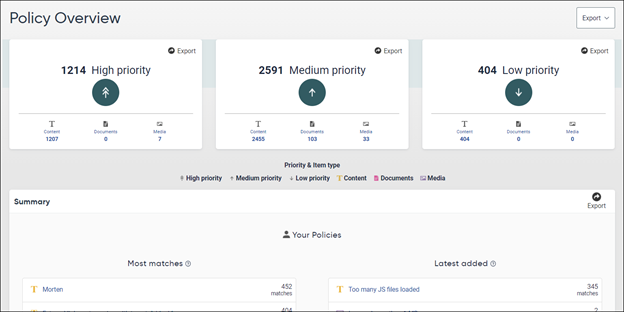
Policy Overview
Under Policy Overview in the Policy module, you see all policies that relate to the sites you have access to. Once a site is selected you can filter the policies using a group.
My policies
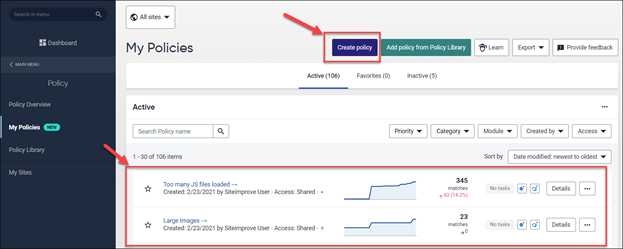
At Policy > My Policies, you can view and create policies. For instructions, see Creating policies.
The My Policies page includes a visual indication of changes in the last 30 days. You have multiple sorting options including the possibility to sort policies on most or least significant changes.
This page also features actionable insights for each policy in the "Details" slide-in which can be reached by clicking the "Details" button on each row.
The Active, Favorite, and Inactive tabs at the top of the page allow you to filter which policies are displayed. For information about removing policies, see How do I delete or deactivate a Policy?
Policy details
Select a specific policy from the Policies table and choose the site you are interested in if multiple sites are available.
The policy details table allows you to see specifics for that policy – the rules that have been used and the sites it is associated with. The table displays each page that contains a match, together with details.
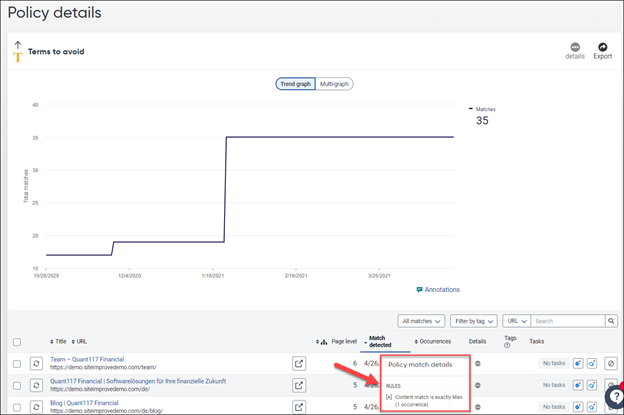
You can have the Policy ignore individual pages by using the ignore button farthest to the right on each row.
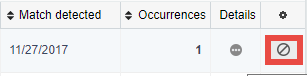
To see which pages have been ignored, you can use the "All matches" filter just above the Policy details table. There you can also reverse your earlier decisions.
My Sites
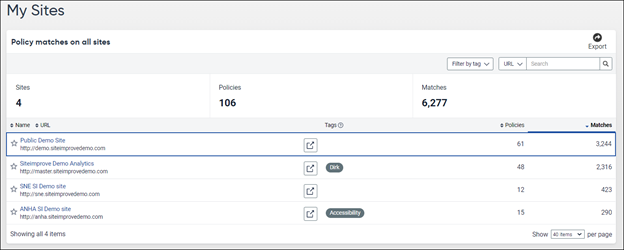
My Sites gives a quick overview of all the sites you have access to, with the number of policies that are active for each site, and the number of current matches.
Create Policy
Policies can be created from the My Policies menu or from the Policy library. The In-App tutorials below are also available to guide you on creating policies:
Did you find it helpful? Yes No
Send feedback