How to get the Siteimprove Analytics script
Overview
In order to use Analytics (or Traffic) on your website, you will need to add the Siteimprove Analytics JavaScript code. The code will be sent once you subscribe or request a trial for Analytics. (For information on adding a site see: How do I add a site to my Siteimprove subscription?) The code can also be found in the platform when you select a site using the Analytics site selector, that has an Analytics subscription but does not have the code.
Getting your version of the script
Only Administrators and Account owners have access to the Analytics Script page in the platform.
For customers subscribed to Analytics
You can find your version of the Siteimprove Analytics script on the Analytics Script page on the platform (Requires login).
To navigate to the page go to Analytics > Analytics Settings > Tracking > Analytics Script from the left-hand menu.
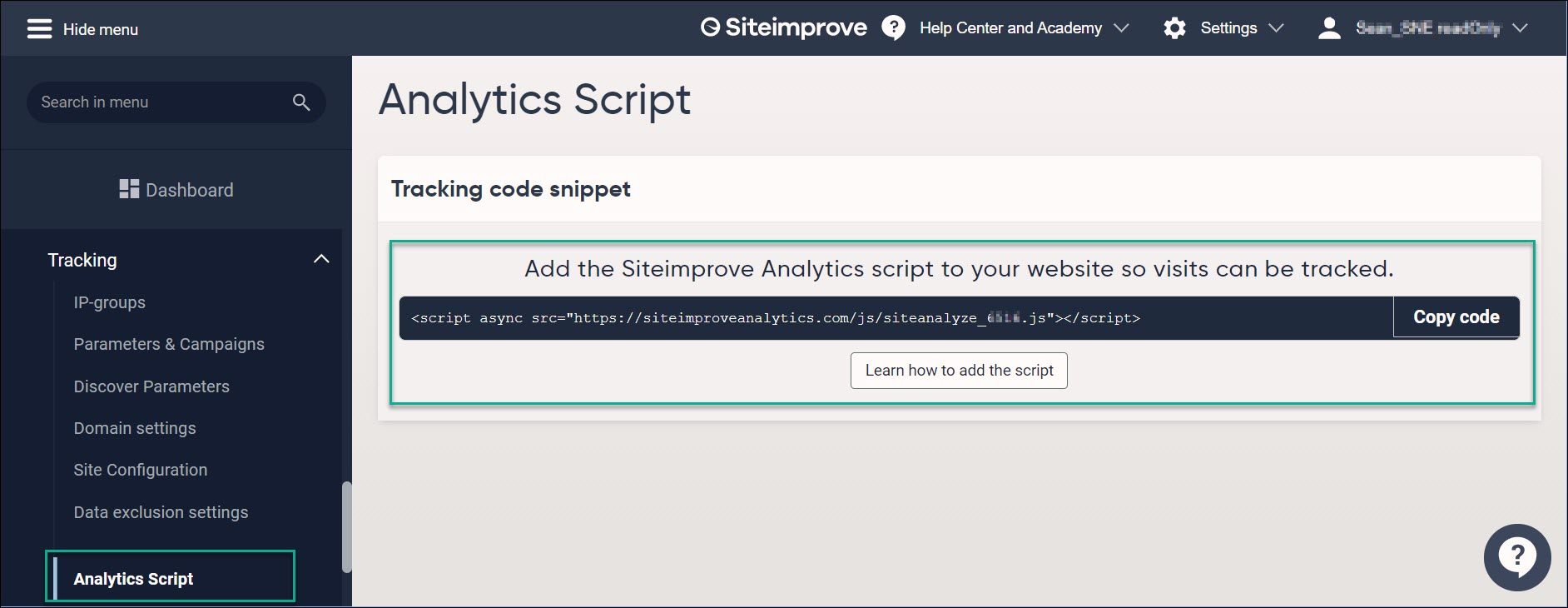
Example of Siteimprove Analytics JavaScript code:
The 'XXXXX' in the code below represents a numeric code that is specific to your account so Do Not use this exact code below.
<script async src="https://siteimproveanalytics.com/js/siteanalyze_xxxxx.js"></script>
You can use this same Analytics JavaScript code no matter how many websites you are tracking with Siteimprove Analytics. The code will need to be added to all pages that you want to track.
The Siteimprove Analytics JavaScript is asynchronous which means it will not affect your website's performance, can work seamlessly with other JavaScript, and is not required to be placed in a specific location on your website.
Note: We recommend that the JavaScript is always added at the bottom of the website in a footer or similar, just before the closing </body> tag. Also, JavaScript can be blocked by a content security policy (CSP) configured to prevent unwanted cross-site-scripting. If you use CSP, please configure it to allow the Siteimprove script.
It is likely you will need to take one of the following approaches in order to get the Siteimprove Analytics JavaScript on your site.
For customers not subscribed to Analytics (i.e. Traffic)
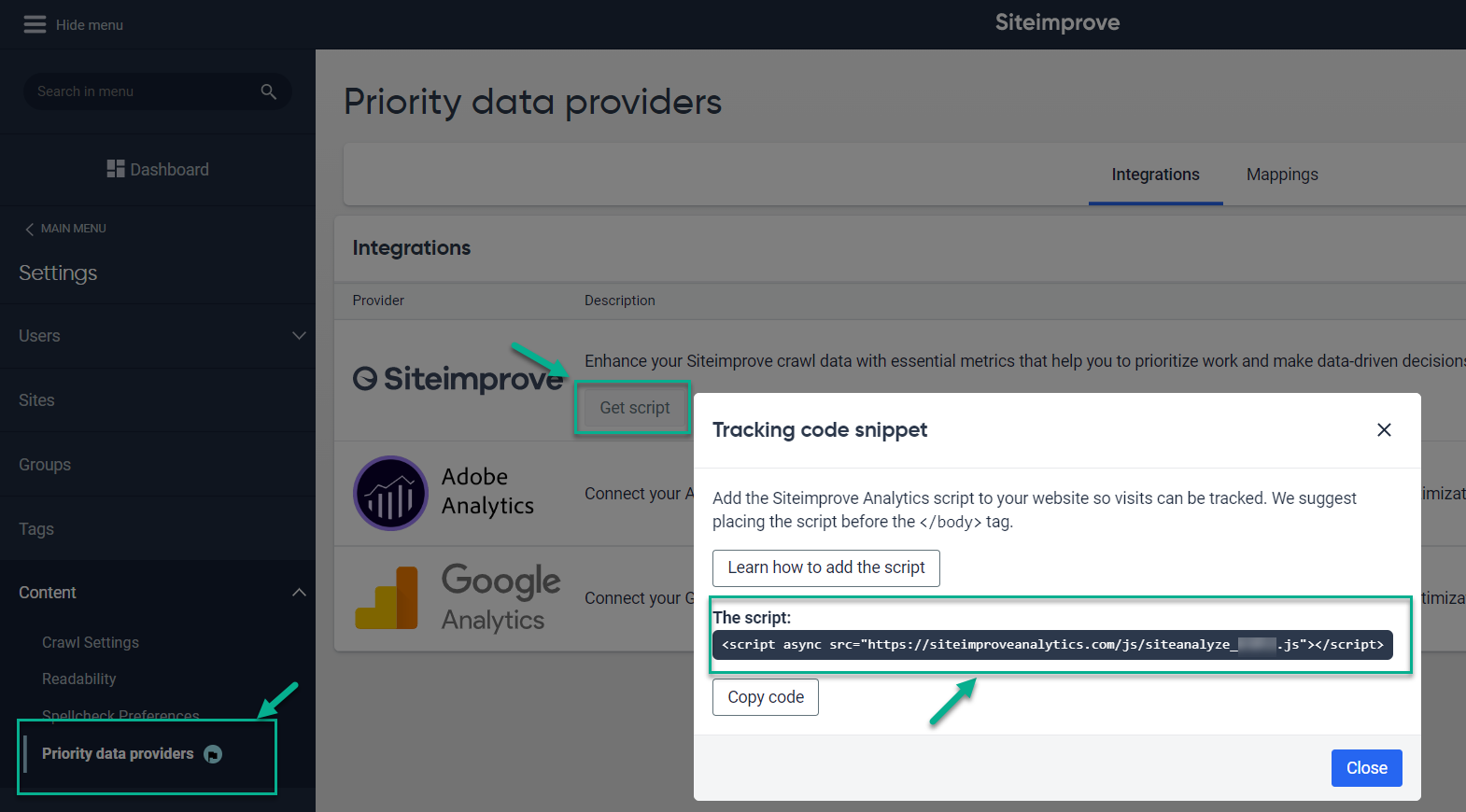
Customers not subscribed to Analytics can still take advantage of our Traffic features. You can find your version of the Siteimprove Analytics script on the Traffic data providers page on the platform (Requires login).
To navigate to the page go to Settings > Content > Traffic data providers from the left-hand menu.
Click Get script and copy the code from the pop-up.
Adding the script to your website by CMS platform
Once you have your script, the last step is pasting it into your website. Where that happens depends on which platform your site is built on.
As above, we recommend placing it just before the closing </body> tag — the list below shows where that setting lives on the most commonly used CMS platforms.
- WordPress
Location: Theme footer file, or a header/footer plugin
Path: Appearance > Theme File Editor > footer.php (before </body>) — or plugin: WPCode / Insert Headers and Footers > Footer - Shopify
Location: Theme code editor
Path: Online Store > Themes > Actions > Edit code > Layout > theme.liquid (before </body>) - Wix
Location: Custom Code settings
Path: Settings > Custom Code > Add Custom Code > place "Body - end" - Squarespace
Location: Code Injection
Path: Settings > Advanced > Code Injection > Footer field - Webflow
Location: Site-wide custom code settings
Path: Site settings > Custom Code > Footer Code - Drupal
Location: Theme template, or a custom HTML block in the footer region
Path: Appearance > [theme] > html.html.twig (before </body>) — or Structure > Block layout > add Custom Block to the Footer region - Joomla
Location: Template style's custom code field
Path: System > Site Templates > Styles > [style] > Options tab > Custom Code (before </body>) - HubSpot CMS
Location: Site footer HTML setting
Path: Settings > Website > Pages > Site Footer HTML - Magento
Location: Store view design configuration
Path: Content > Design > Configuration > [store view] > Edit > Footer > Miscellaneous HTML
Note: Menu names and locations change as platforms update their admin UI. If a path above doesn't match what you see, search the platform's own help docs for "custom code", "footer code", or "tracking code".
Alternative: Google Tag Manager
If a site already uses Google Tag Manager (available as a custom-code option on most of the platforms above), the script can be added as a Custom HTML tag firing on All Pages instead of editing template files directly.
Need help?
Reach out to Siteimprove technical support if you have any questions.
Related Article
Did you find it helpful? Yes No
Send feedback