How do I adjust my spellcheck language preferences?
Summary
You can change the spellcheck languages used for a site. Siteimprove identifies the languages used on your site, allows you to adjust the primary and fallback spellcheck languages, and applies the updated preferences after processing is complete. In this article, we outline the steps required to change the spellchecking languages used on a site.
Prerequisites
- You need to have a role of administrator, account owner, or a customized role with this permission to edit the language used to spellcheck your site.
Procedure
Changing languages used for a site
- Go to Settings > Content > Spellcheck Preferences on the side menu. Here you can see an overview of your sites, the number of pages, and the languages we identified on the site.
- Expand the Languages column to see the specific languages found on each site, and on what pages.
Note: we spellcheck up to 2 languages on a web page, so a page on your site can appear in more than one row in this sub-table.
To see a list of pages being checked with each language, click on the page's link in the Spellchecked pages column.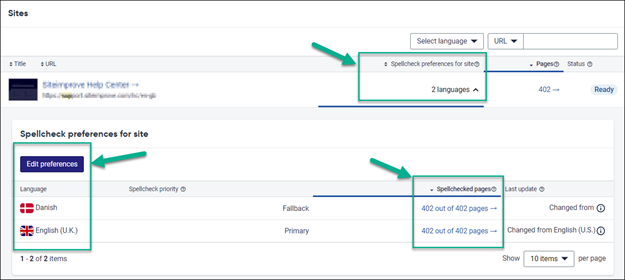
- Click on Edit preferences to change the language settings for a particular site.
Use the dropdowns in the modal presented to select: the language you want to change from (e.g., English US) and language you want to change to (e.g., English UK).
In this modal, you also have the option to Make another change if you wish to change another language preference for the same site.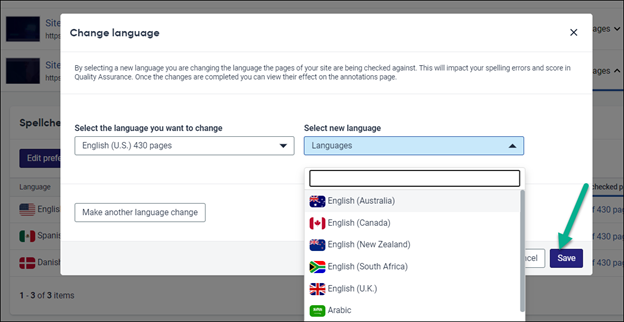
- Click Save and the changes will start updating. The settings update time can take several hours. You cannot make additional changes while your previous changes are still being updated.
Note: The “Updating” status will change to “Ready” once the setting changes have been registered but it can take up to 24 hours for the Spelling module in Quality Assurance to reflect your new spelling preferences yet. The time depending on the size of your site.
An automatic annotation will be added (e.g., to progress graphs) when changes are made to the spellcheck language. This is to ensure transparency between team members.
Expected Outcome
Your site's spellcheck language preferences are updated and will be used for future spellchecking once processing is complete. Depending on site size, it may take up to 24 hours for the Spelling module in Quality Assurance to fully reflect the updated settings.
Additional Information
How spellcheck languages are determined
Siteimprove examines your website content to identify the different languages used.
Once identified, we spellcheck every page against a primary language. For content that does not match the primary language, we'll check with a second 'fallback' language.
The Spellcheck Preferences page gives an overview of the spellchecks performed on each of your sites. If the languages used for spellchecking your sites are incorrect, you can change them.
For example, Siteimprove may be checking your site in American English (English US), but you want it to be spellchecked in British English (English UK).
Considerations
- After 24 hours you can expect to see new Misspellings and Words to Review in Spelling as your sites are now being checked with a different language. This may impact your Quality Assurance DCI score. You can view the progress graph under the My Sites menu, to see changes in Misspellings and Words to Review.
- Your new language preferences for spellchecking a site will apply to all new pages added to the site. So, if your new spellcheck preference is British English (English UK) any new English page added to your site will be spellchecked in British English (English UK).
- Spelling decisions made while your site was being spellchecked in a previous language will apply to your updated language. For example, if you approved a brand name as a correctly spelled word it will not be flagged as a misspelling again even if you change the spellcheck preferences of that site.
Did you find it helpful? Yes No
Send feedback