How to install the Siteimprove CMS plugin
Summary
Installing the Siteimprove CMS plugin requires four key steps: verify that the site is being crawled in the Siteimprove platform, download the appropriate plugin package, complete the CMS-specific installation, and have the Siteimprove Account Owner perform the initial login and acceptance of the terms and conditions. Once completed, users can access and navigate Siteimprove functionality directly within their CMS.
Prerequisites
Before installing the plugin:
- Make sure that the CMS site is set up as a site being crawled in the Siteimprove platform. If it is not, see Site Setup Best Practices for Siteimprove
- If you want to test the plugin on a test environment first please reference this article for steps to do so: How to test the Siteimprove CMS Plugin.
- In most cases, installation will require someone with admin rights in the CMS and someone with technical knowledge of the CMS.
- The Siteimprove Account Owner should be available to complete the initial login and agree to the terms and conditions.
Steps
Step 1: Confirm the site is being crawled
Make sure that the CMS site is set up as a site being crawled in the Siteimprove platform. If it is not, see Site Setup Best Practices for Siteimprove. If you want to test the plugin on a test environment first please reference this article for steps to do so: How to test the Siteimprove CMS Plugin.
Step 2: Download the plugin and installation guide
Download the plugin and installation guide (if applicable) which can be found via the Siteimprove CMS plugin page.
Step 3: Install the plugin
Install the plugin as described in the CMS specific plugin installation guide which can be found via the Siteimprove CMS plugin page. In most cases, this will require someone with admin rights in the CMS and someone with technical knowledge of the CMS.
Step 4: Complete the initial login
The Siteimprove Account Owner should be the first one to log into the plugin in the CMS with their Siteimprove platform credentials and agree to the terms and conditions. 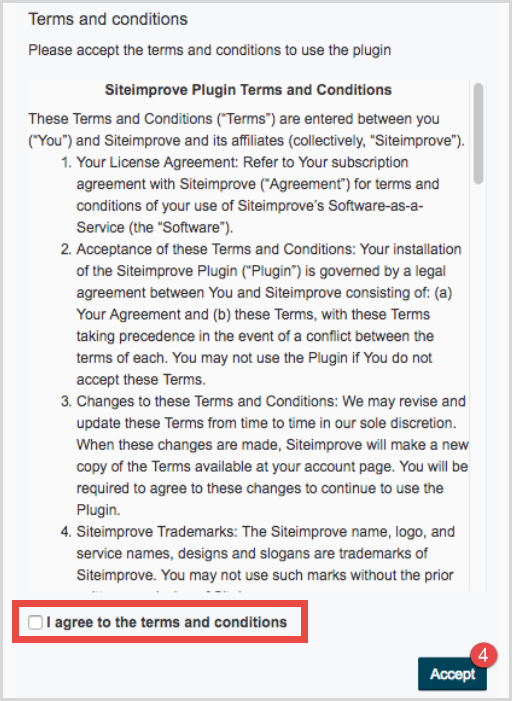
Step 5: Start using the plugin
Now you can login and navigate the CMS Plugin. See: How to navigate the Siteimprove CMS Plugin.
You can also read the Siteimprove CMS plugin terms and conditions under Integrations > CMS Plugin Setup.
Expected Outcome
After completing these steps:
- The Siteimprove CMS plugin is installed within your CMS.
- The Account Owner has authenticated the integration and accepted the terms and conditions.
- You can login and navigate the CMS Plugin.
Additional Resources
Did you find it helpful? Yes No
Send feedback