How do I export a list of users that have access to a specific site?
Answer
You can export a list of users who have access to specific sites by filtering the sites you want in Settings > Sites and selecting Export filtered users. The resulting CSV file contains user names, email addresses, roles, and other relevant access details.
Overview
Managing user access across hundreds or thousands of sites can be challenging — especially when you need a quick overview of who has access to what. With Siteimprove’s redesigned Sites overview (Settings - Sites), you can now easily export a list of users with access to specific sites.
Before You Begin
- Access to Settings > Sites
- The sites you want to export should be identifiable through search or tags
- Appropriate permissions to view site access information
Why Use This Export?
- Quickly identify who has access to specific sites.
- Export user emails, roles, and names for auditing or reporting.
- Works for filtered lists, so you can target exactly the sites you care about.
Export Users for Specific Sites
- Go to Settings > Sites.
- Select the site you are interested in.
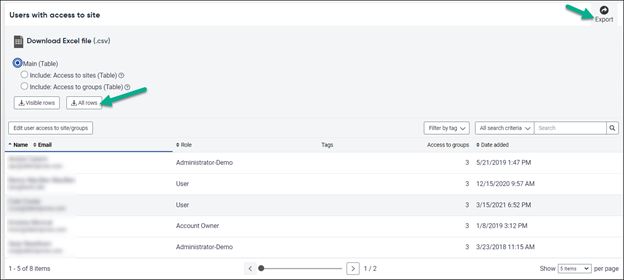
- Scroll down to Users with access.
- Click Export.
- Click All rows to export the table to CSV file.
Did you find it helpful? Yes No
Send feedbackSorry we couldn't be helpful. Help us improve this article with your feedback.