Siteimprove Optimizely CMP Integration Installation and Usage Guide
Summary
The Siteimprove Content Assistant browser extension integrates Siteimprove's insights directly into Optimizely's Content Marketing Platform (CMP), running a Prepublish check on your content before you publish. To use it, install the extension for your browser (Chrome, Firefox, or Edge), then open it within the Optimizely Omnichannel Editor to receive real-time accessibility, SEO, quality, and policy feedback. You'll need a Siteimprove account with a Prepublish subscription and an Optimizely CMP account.
Prerequisites
- A Siteimprove account with a Prepublish subscription (if unsure, contact your Siteimprove representative or the support team)
- An Optimizely CMP account
- A supported browser: Google Chrome, Mozilla Firefox, or Microsoft Edge (Safari support upcoming)
Overview
Transform your content creation process with the "Siteimprove Content Assistant" browser extension, integrating Siteimprove's industry-leading insights directly into Optimizely's Content Marketing Platform (CMP). This integration performs a Prepublish check of your content in the Optimizely CMP to help optimize your content before publishing, enhancing productivity and content quality while ensuring it meets high standards of quality and compliance, making your website inclusive and driving more traffic.
Key Features
- Effortless Integration: Instantly connect Siteimprove's insights to selected platforms.
- Real-time Feedback: Receive immediate suggestions and improvements for your content as you work, helping you maintain high standards of quality and compliance, even before you publish.
- Enhanced Accessibility: Ensure your content meets all accessibility guidelines, making your website inclusive for all users.
- SEO Optimization: Get actionable recommendations to improve your search engine rankings and drive more traffic to your site.
Prerequisites for Installation
To use the integration, you must have a Siteimprove account with a Prepublish subscription and an Optimizely CMP account. If you are not certain whether you have a Prepublish subscription, please reach out to your Siteimprove representative or to the support team.
Installation Guide
To use the Siteimprove Optimizely CMP Integration, install the "Siteimprove Content Assistant" browser extension for your preferred browser.
- Google Chrome: Install from the Chrome Web Store.
- Mozilla Firefox: Install from the Firefox Add-ons Store.
- Microsoft Edge: Install from the Edge Add-ons Store.
- Upcoming support: We're working on adding support for Safari.
During the installation of the browser extension, you may be prompted to pin the browser extension if you haven't already, which we recommend, and to explore key features of the extension. Select the "Continue" button to move through these steps and complete the installation. 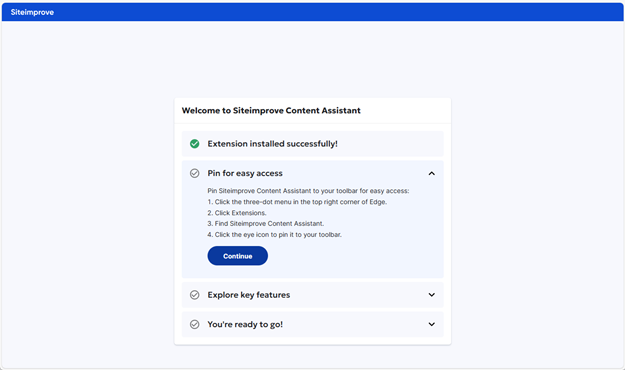
You are now ready to use the Siteimprove integration within the Optimizely CMP. Follow the usage guide below for how to use the integration.
Usage Guide
Siteimprove's integration with the Optimizely CMP provides the functionality of analyzing and assessing the content in the Omnichannel Editor prior to publishing the content. To use the integration, follow these steps:
- Using your browser, navigate to the Optimizely CMP website. Log in, if needed.
- Navigate to Plan to see relevant tasks.
- Select a task under a campaign.
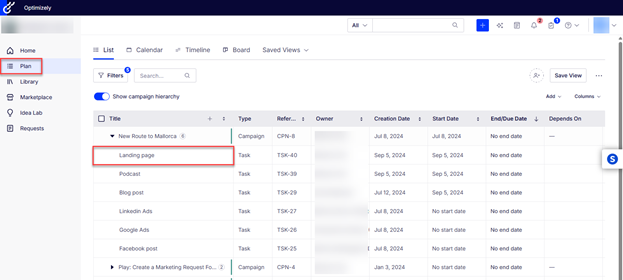
- Navigate to the Content tab and select the content you want to edit or publish. The content must be editable in the Omnichannel editor.
- Select Edit in Fullscreen using the Pen icon to open the content in the Omnichannel Editor.
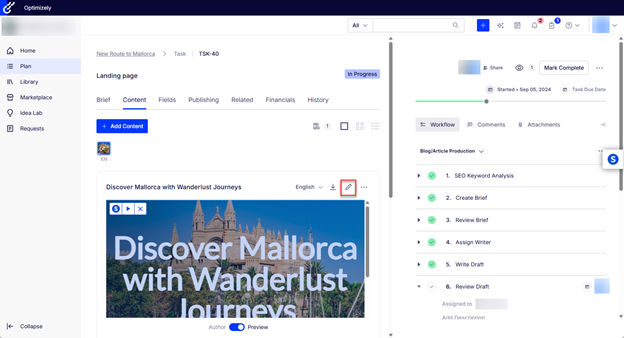
- You can now preview the content (if not, you need to click Preview.
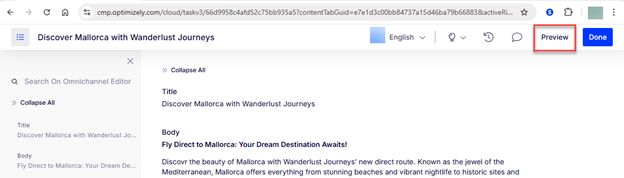
- Now open the Siteimprove Content Assistant browser extension in your browser.
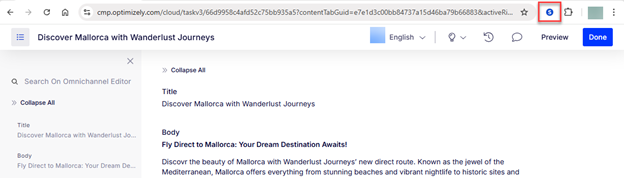
- If you are not logged in to your Siteimprove account, you will be asked to log in to your Siteimprove account.
Siteimprove's logo will now appear in a tab on the right side of the Preview window, and a blue overlay will appear over the preview area along with a widget in the upper left-hand corner of the preview window with a Siteimprove Logo button, a play button, and an "x" button inside it. 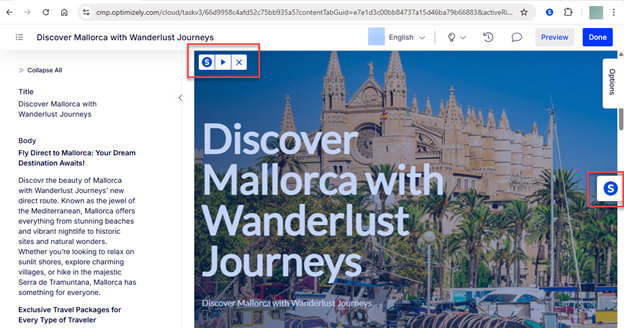
You can now open the Siteimprove integration by clicking the Siteimprove logo in the tab to expand the side panel (aka overlay). This will open a side panel on top of the Omnichannel Editor, which runs a Prepublish check (if not, you can click "Recheck page draft" at the bottom of the side panel). 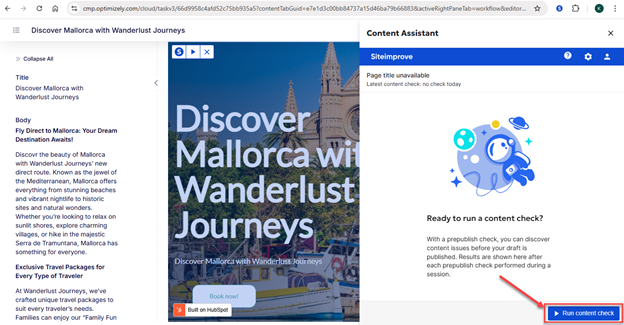
Using the Preview Area Widget
Optionally, you can also use the widget in the preview area to complete the following tasks.
- Siteimprove logo button = toggles the side panel (aka overlay).
- Play button = runs a check of the content (like when you select the "Run content check" or "Recheck draft" buttons in the side panel (aka overlay)).
- x button = closes the side panel or removes the blue overlay and widget from the preview area.
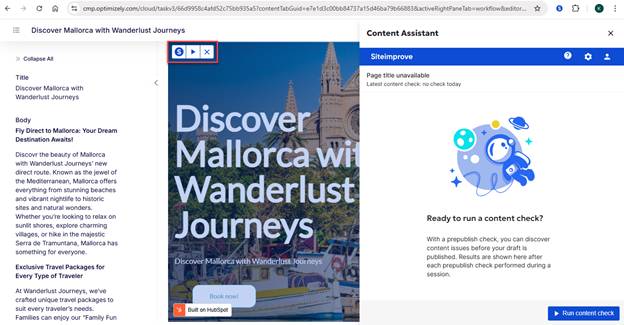
When you select the option to run a check, a processing loading bar will initially show in the side panel as Siteimprove analyzes the content in the Preview area using a Prepublish check. 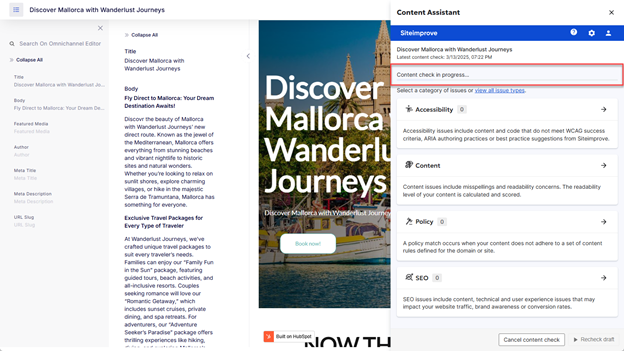
Once the check is completed, insights and suggestions for optimizations will be displayed in the side panel. 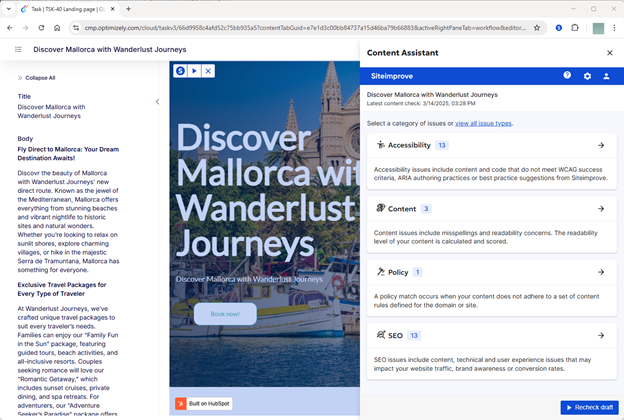
You can expand the sections and highlight issues that are highlightable in the preview area. 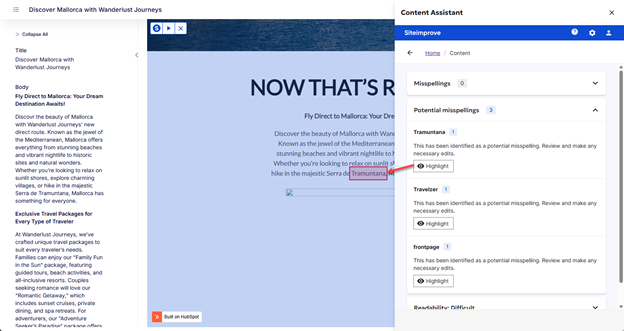
You can also select the link that says "view all issue types" to change the view in the side panel to a different "List view" type. 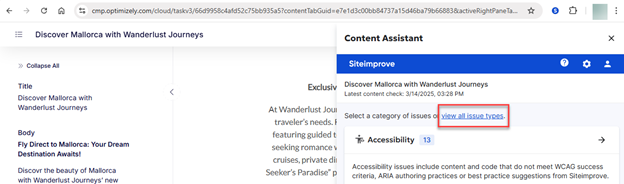
"List view" type in the browser extension. 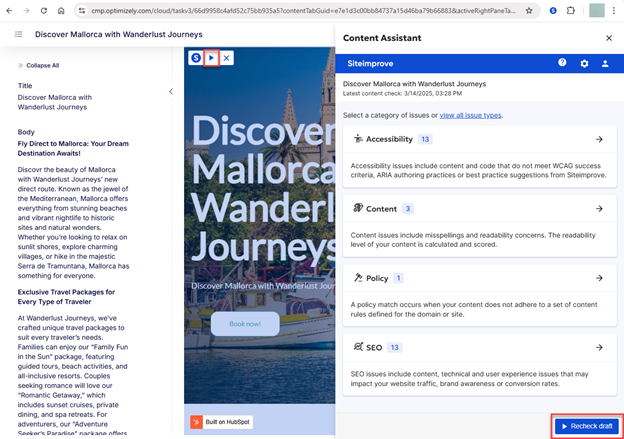
You can then review your content, make the relevant changes based on the results, and run another recheck of the draft of the page using the "Recheck draft" or play button.
Note: Siteimprove is happy to help with questions regarding the configuration of the integration and basic usage as mentioned above. However, Siteimprove does not provide support or product help for the third-party software with which you are connecting.
Checks Included in This Integration
- Accessibility - all conformance levels
- Content (Quality Assurance) - No broken links yet
- Policy - Requires that the policy is marked as 'High priority,' 'CMS Plugin,' 'Shared,' and enabled for 'All sites' within the Siteimprove platform.
- Brand Consistency - To be added
- SEO
Additional Resources
- For additional information on how to use Optimizely CMP to edit content with omnichannel authoring, visit: Edit content with omnichannel authoring
Did you find it helpful? Yes No
Send feedback